The Problem: Media Breaks Between Ticket System and Communication
Sound familiar? A ticket lands on your desk, you need to contact an employee from another department - but are they available right now? What was the correct phone number again? And for next week's appointment, you first have to open Teams, check the calendar, create the meeting, and then manually copy the link into the ticket.
In many companies, the separation between ticket system and Microsoft 365 leads to:
- Constant context switching - jumping between Znuny, Teams, and Outlook
- Missed calls - called the colleague while they were "Busy"
- Cumbersome scheduling - check calendar, create meeting, copy link
- Lack of traceability - which appointment belongs to which ticket?
The Solution: Microsoft 365 Directly in Znuny
The Collaboration Add-on for Znuny 7.2.x seamlessly integrates Microsoft 365 into your ticket system. Avatars, presence status, contact details, and scheduling - all right where you work.
Features Overview
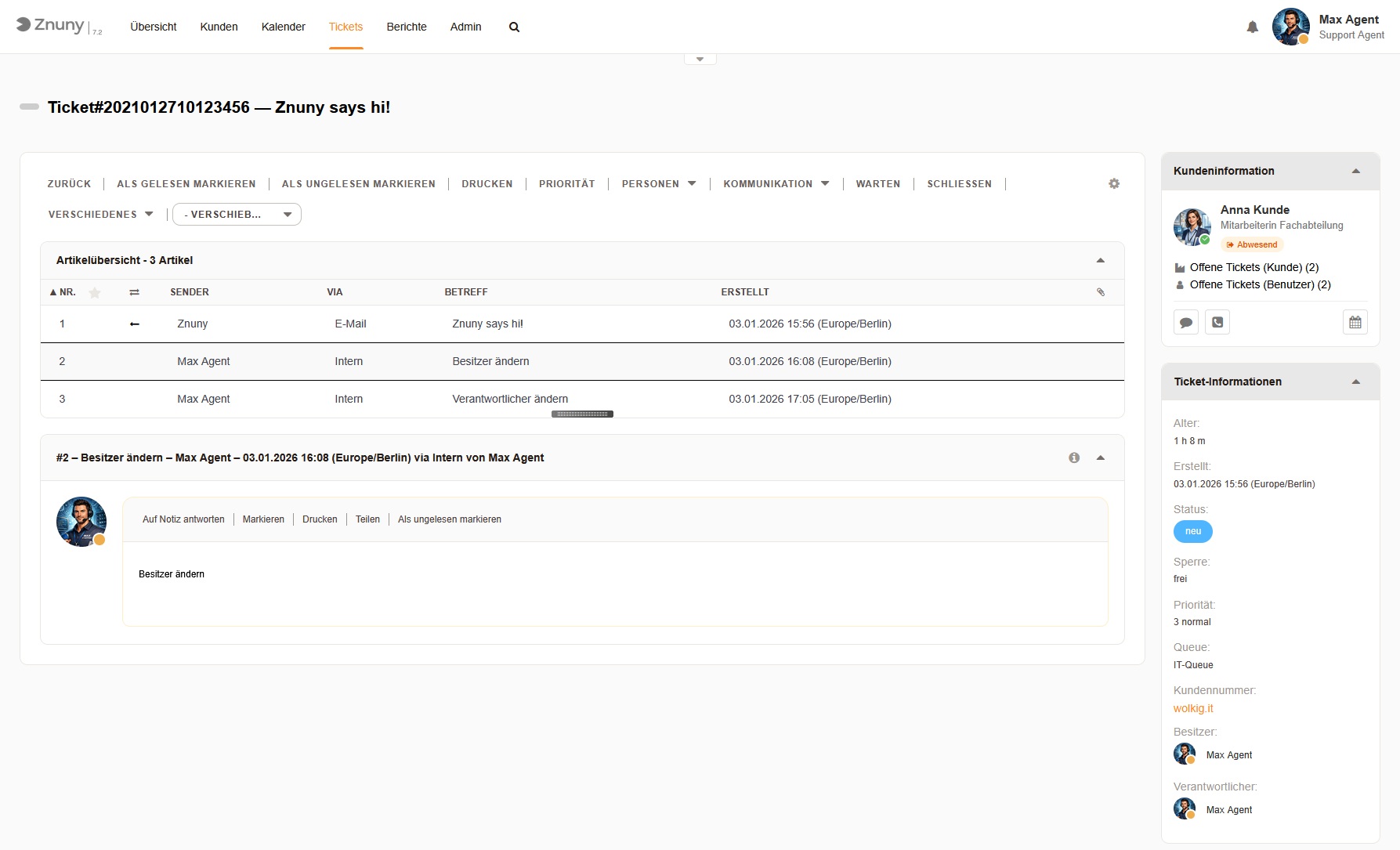
Avatar and Presence Status
See at a glance who's online:
- Profile pictures from Microsoft 365 instead of generic avatars
- Real-time presence - Available, Busy, Away, Offline
- Throughout the system - header, ticket view, articles, customer info
The green dot on the avatar tells you immediately: now is a good time for that call.
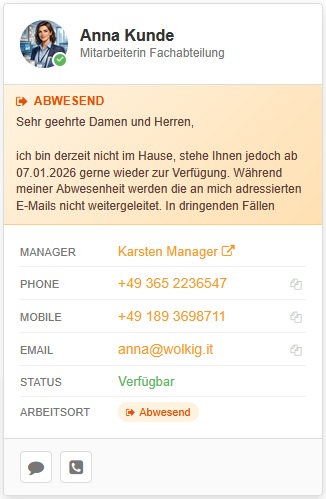
Hover Cards with Contact Details
Hover over a name and get all the important information:
| Information | Example |
|---|---|
| Name & Position | Anna Kunde, Department Employee |
| Out-of-Office Notice | Automatic reply from Outlook/Exchange |
| Manager | Karsten Manager |
| Phone | +49 365 2236547 |
| Mobile | +49 189 3698711 |
| anna@wolkig.it | |
| Presence Status | Available |
| Work Location | Away |
Teams Chat and Call with One Click
No more searching in Teams for the right contact:
- Chat button - instantly opens a Teams chat with the person
- Call button - starts a Teams call
- Deep links - works with Teams desktop app or in browser
Communication starts directly from the ticket context.
Meeting Scheduler with Free/Busy Query
Schedule appointments without opening Outlook:
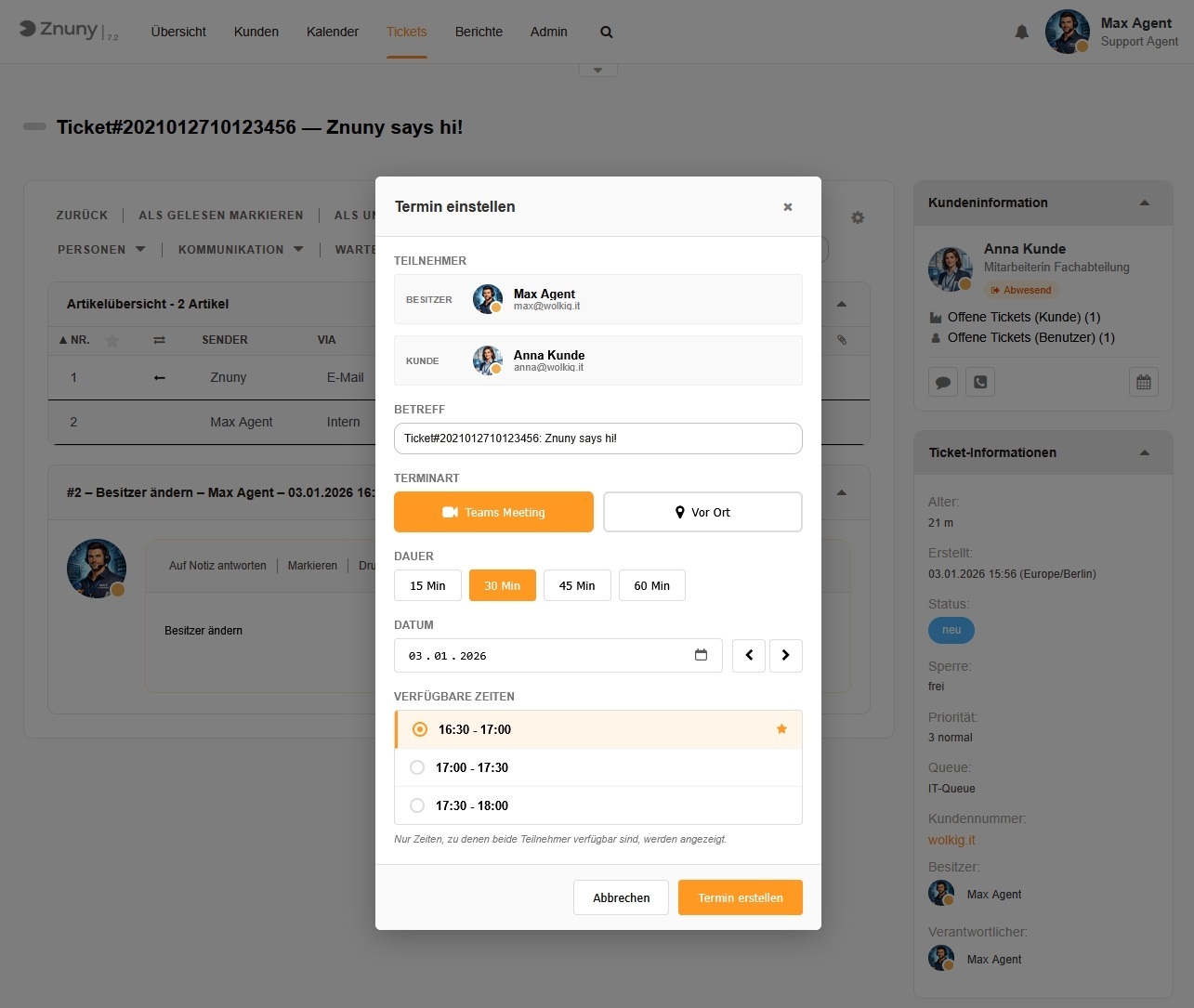
How it works:
- Click the calendar icon in the customer information
- Select Teams Meeting or On-site Appointment
- Choose the duration (15, 30, 45, or 60 minutes)
- See available time slots - only times when both participants are free
- Click "Create Appointment"
The appointment is automatically:
- Created in the Znuny calendar
- Created as a Teams meeting in Microsoft 365 (for online appointments)
- Linked to the ticket
Automatic Ticket Linking
Created appointments appear directly in the ticket:
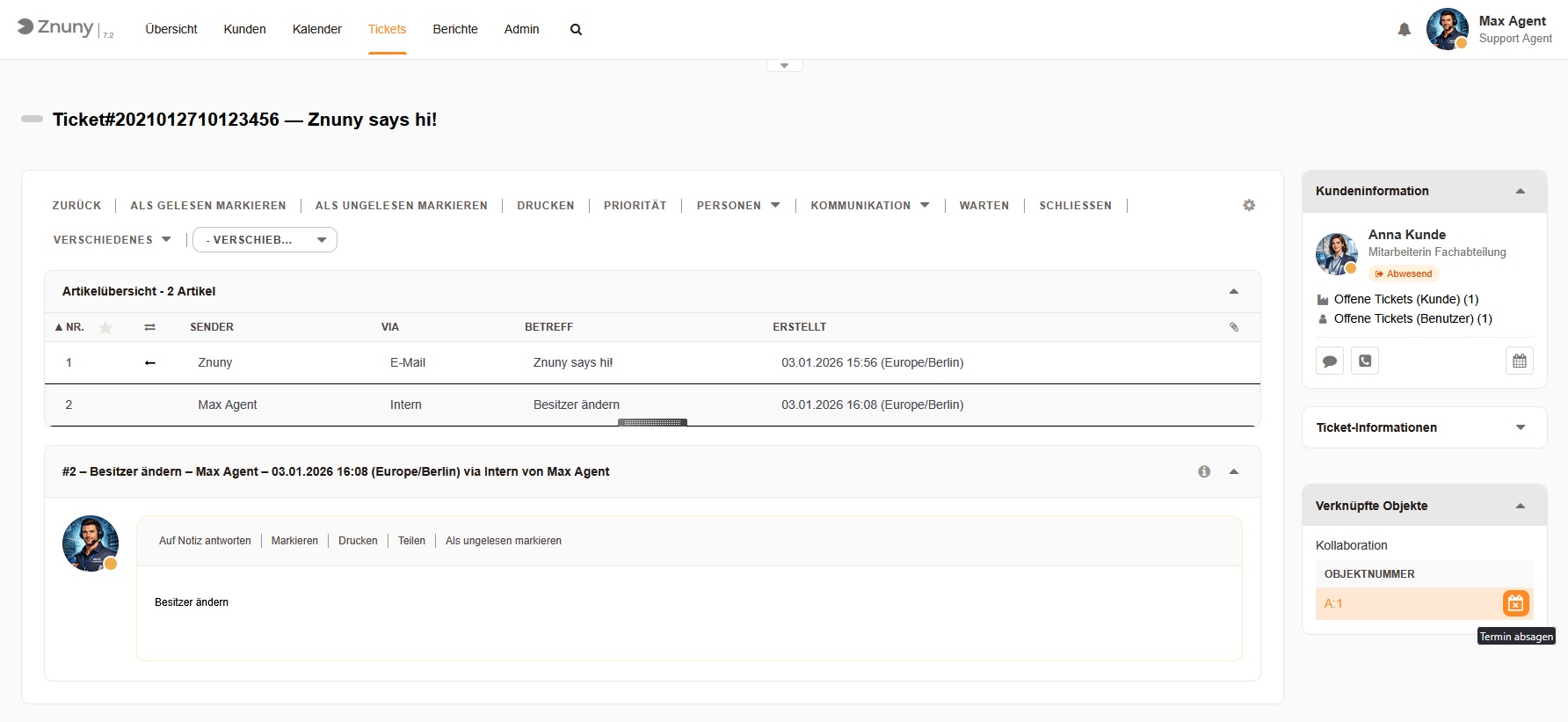
For ITSM users: The widget is also available in the ITSM layout:
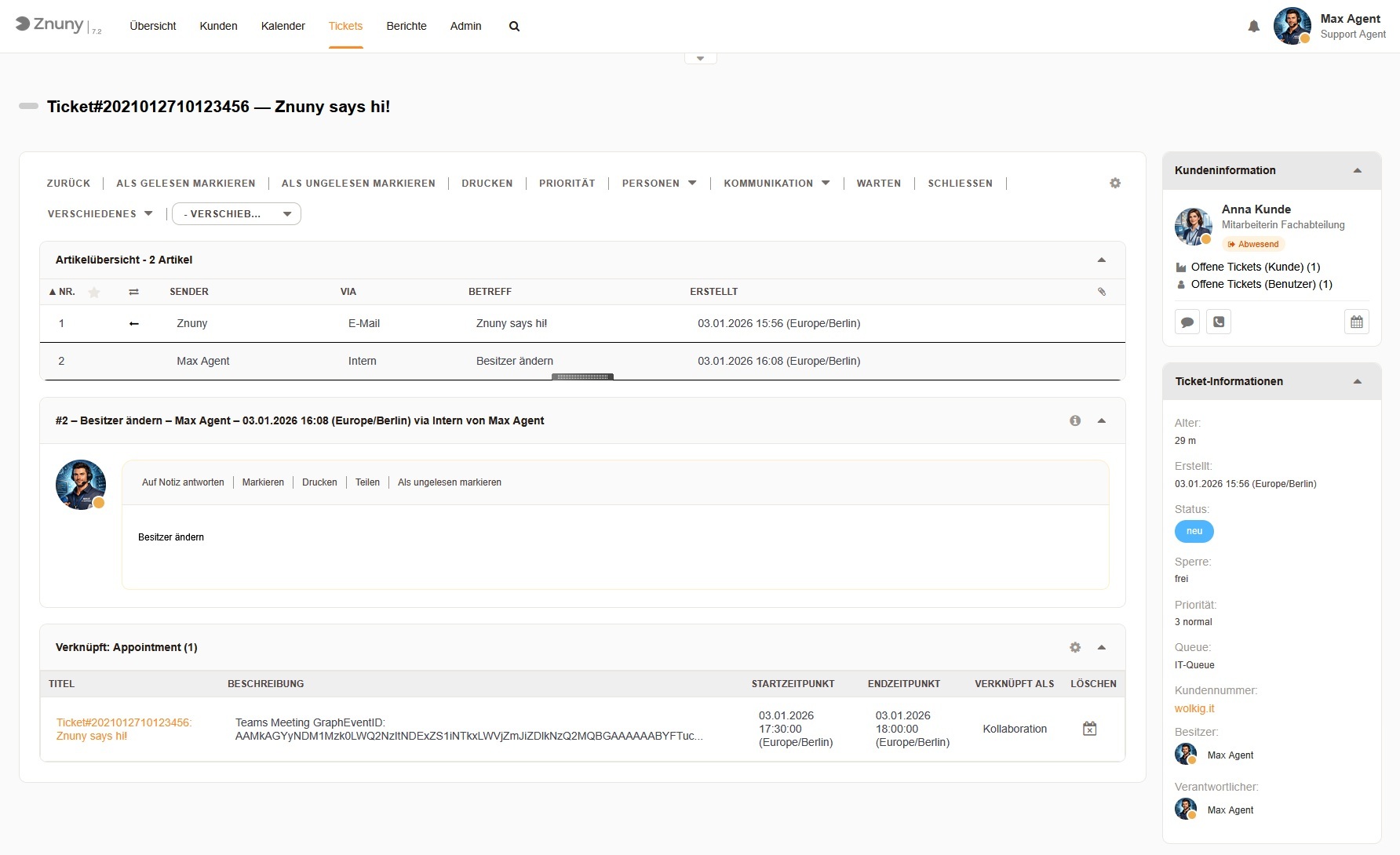
- Title with ticket reference
- Teams meeting link to join
- Start and end time
- Delete button for cancellations
No more lost meeting links, no forgotten appointments.
Calendar Availability and Out-of-Office Notice for Owner/Responsible
Who has time for this ticket? And is the colleague perhaps on vacation? When selecting Owner or Responsible, you see all relevant information at a glance - both when creating new tickets and when changing existing ones:
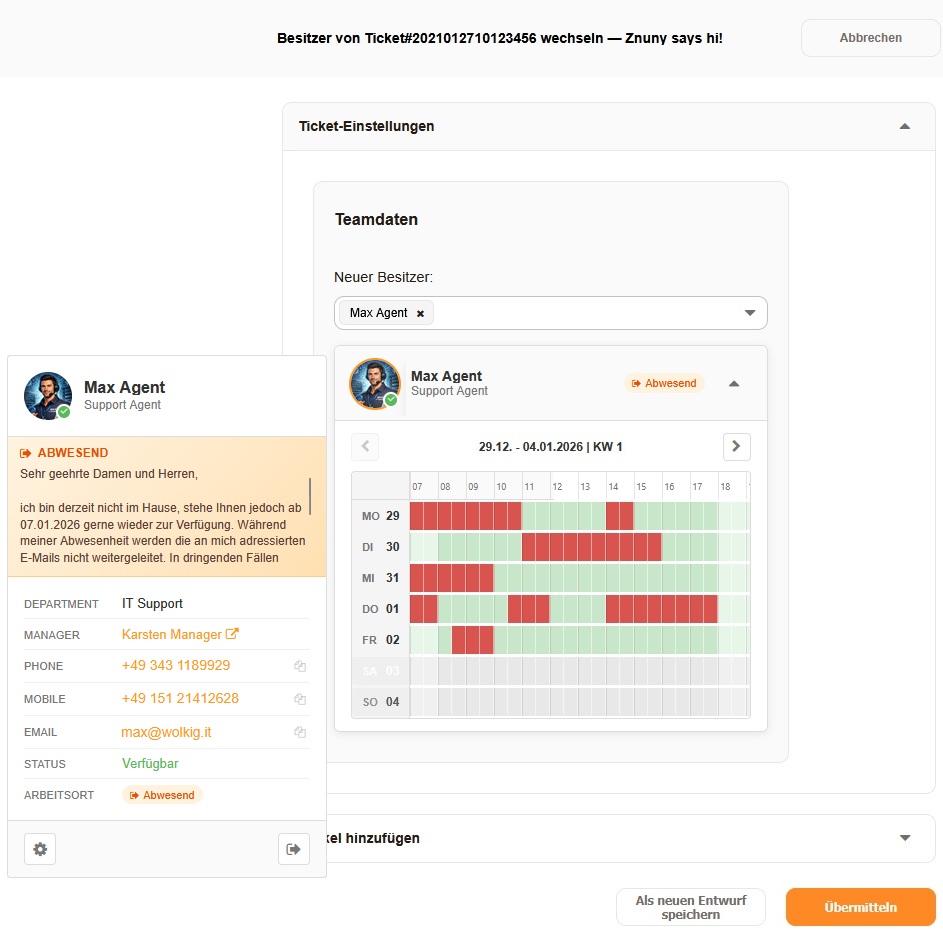
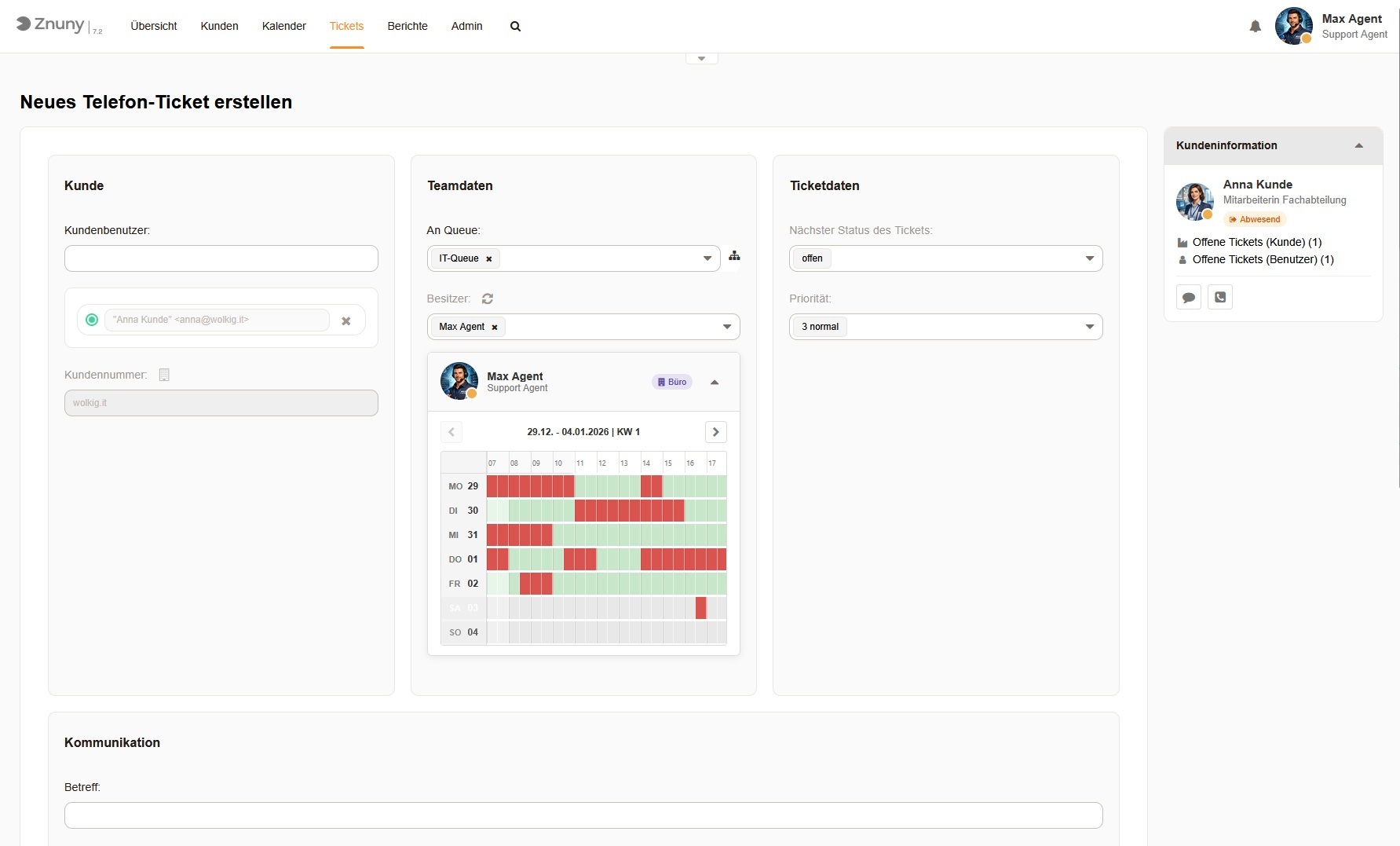
- Week view of the selected agent
- Green blocks = available
- Red blocks = busy
- Out-of-office notice - If an automatic reply is active in Outlook/Exchange, it's displayed directly
- Works for Owner and Responsible - both fields show the calendar view
No more unpleasant surprises: You immediately see whether the agent is available or has "On vacation until Jan 15" in their out-of-office notice.
Use Cases
IT Support: Quick Problem Resolution
Ticket: "Printer not working"
- Hover over employee name → Presence: Available (green dot)
- Click chat button → Teams chat opens
- Clarify problem → "Could you restart the printer?"
- Schedule appointment → On-site appointment for hardware replacement
- Ticket linked to appointment → everything documented
IT Support: Coordinate Project Meeting
Ticket: "New software rollout in Department X"
- Hover → Department head's contact details visible
- Click calendar icon → Meeting scheduler opens
- Select Teams Meeting → 45 minutes
- Show available slots → both free at 2:00 PM
- Appointment created → Teams link automatically generated
Service Desk: Ticket Handover
Ticket: "Complex network problem"
- Hand over ticket to specialist
- Change owner → Calendar view shows selected agent's schedule
- Colleague selected → Out-of-office notice appears: "On vacation until Jan 3"
- Select different agent → free slots and no absence
- Handover documented → Agent sees all employee data via hover
Technical Details
Supported Providers
| Provider | Features |
|---|---|
| Microsoft 365 | Avatar, presence, profile, chat, call, calendar, meetings |
| Znuny (Fallback) | Avatar (initials), profile from database |
| Mock (Development) | All features with test data |
Silent SSO
After one-time login, the connection persists:
- Automatic token refresh
- Persistent across all browser tabs
- No re-login on page changes
Modular Architecture
The add-on is designed for extensibility:
- Provider abstraction layer for additional integrations
- Feature toggles for granular control
- Fallback mechanism for mixed environments
Installation
Installation works like any Znuny package:
Option A: Package Repository (recommended)
- Admin → System Configuration → Package::RepositoryList
- Add repository: Name
wolkig.it, URLhttps://wolkig.it/packages - Admin → Package Manager → Install "Collaboration" from the list
Option B: Manual
- Download OPM package from the Packages page
- Admin → Package Manager → Install package
- Done!
After installation:
- Create Entra ID App Registration (see Administrator Guide)
- Enter Tenant ID and Client ID in SysConfig
- Enable/disable features as needed
Open Source
The Collaboration Add-on is Open Source under the GPL v3 license. This means:
- Free to use
- Source code viewable
- Modifications allowed
- Community contributions welcome
Repository: codeberg.org/wolkig-it/znuny_collaboration
Conclusion
With the Collaboration Add-on, Znuny and Microsoft 365 merge into a unified work environment - no context switching, no media breaks, everything in one place.
Benefits at a glance:
- Real-time presence directly in the ticket
- Contact details visible on hover
- Chat and call with one click
- Schedule appointments without Outlook
- Automatic ticket linking
- Calendar availability and out-of-office notice for owner/responsible selection
- Free and Open Source
Try it out!
- Download: Packages page
- Documentation & Source Code: codeberg.org/wolkig-it/znuny_collaboration